

How to Upload Medical Images
Once you’ve created your account and activated your subscription, you can begin to upload any medical images you may have received from a provider.
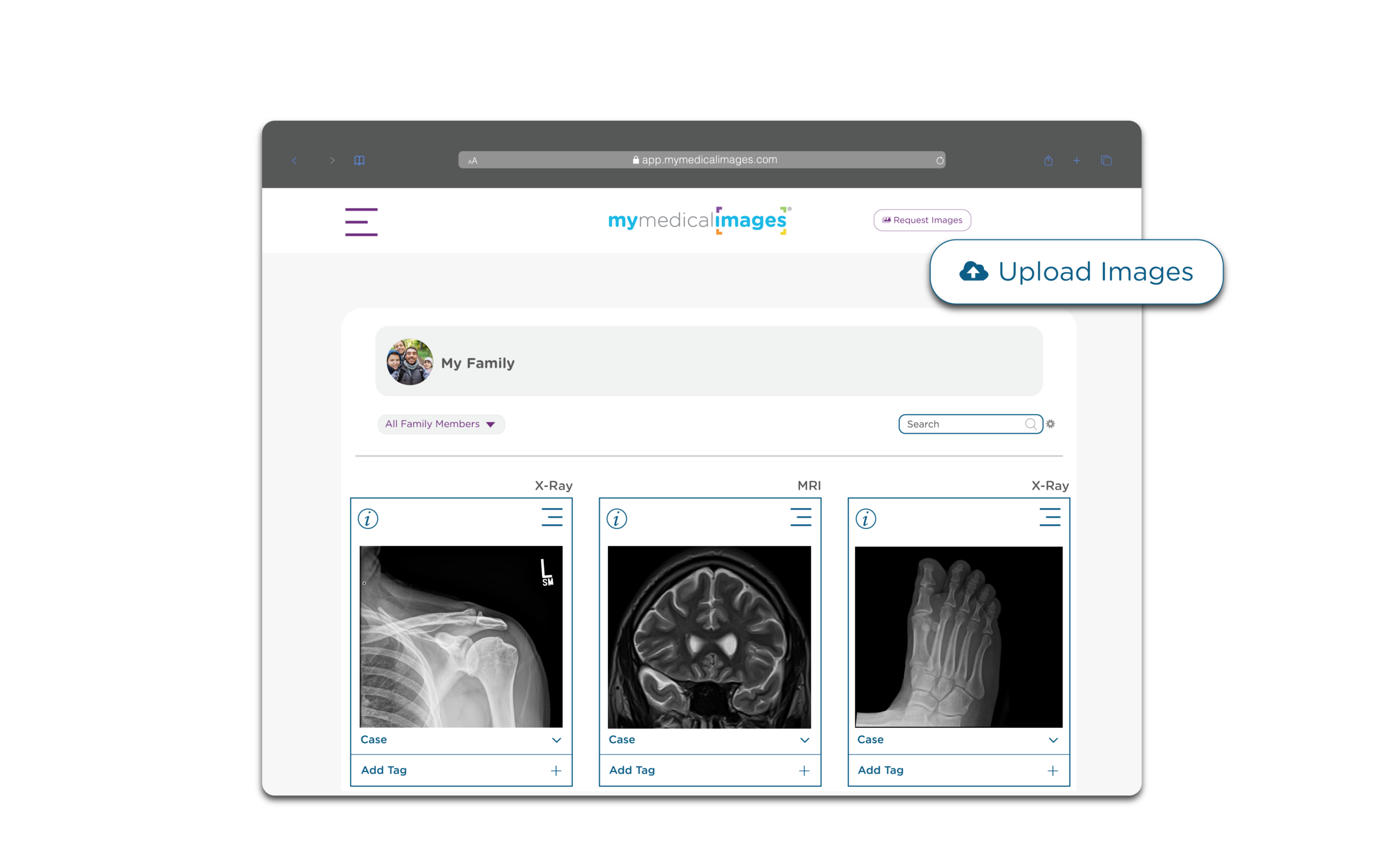
Uploading Medical Images from a CD
PC
With your CD inserted, select the entire CD drive to upload, no need to select the individual files, and we’ll take it from there. Within minutes, your medical images will be accessible via your mymedicalimages® account.

*Quick tip
Actual icons will vary depending on your version of the operating system.
MAC
Under devices, select the entire CD drive to upload, no need to select the individual files, and we’ll take it from there. Within minutes, your medical images will be accessible via your mymedicalimages® account.
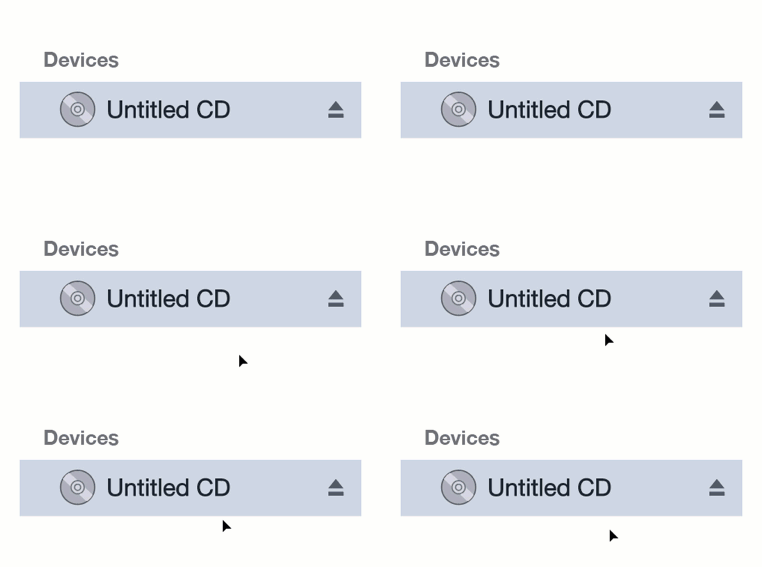
*Quick tip
Actual icons will vary depending on your version of the operating system.
Uploading Medical Images from Local Files or ZIP Files
If your medical images are already saved on your computer, you can upload them directly from a local folder or ZIP file. Select the folder or ZIP file that contains your medical images and begin the upload. Once completed, your images will be securely accessible through your mymedicalimages® account.
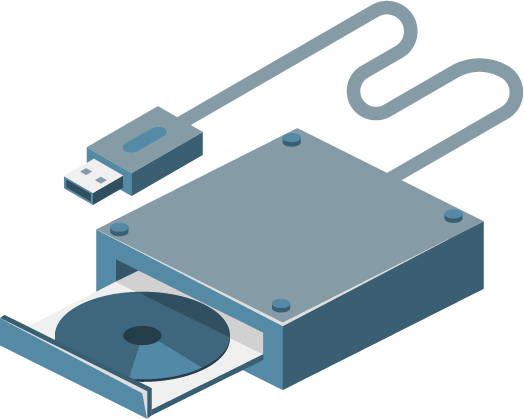
Don’t have a CD drive?
Order a 
Click Learn More and order a CDdriveKit to easily upload your medical images from a CD. Get a bundled CD drive and mymedicalimages® subscription so you can securely upload, store, and share your medical images online.
Order a
Click Learn More and order a CDdriveKit to easily upload your medical images from a CD. Get a bundled CD drive and mymedicalimages® subscription so you can securely upload, store, and share your medical images online.