

Fulfilling a Request for Images from Your Doctor
Received a Request for Images link from your doctor? Follow the steps below to securely upload your medical studies.

Click the link in the email with the subject line:
Important: Request for Medical Images.
Then create or sign in to your account, choose the source that matches your images, and click upload. Once the upload is complete, both you and your doctor will have a copy of your studies.
You can then sign into your account and view your images.
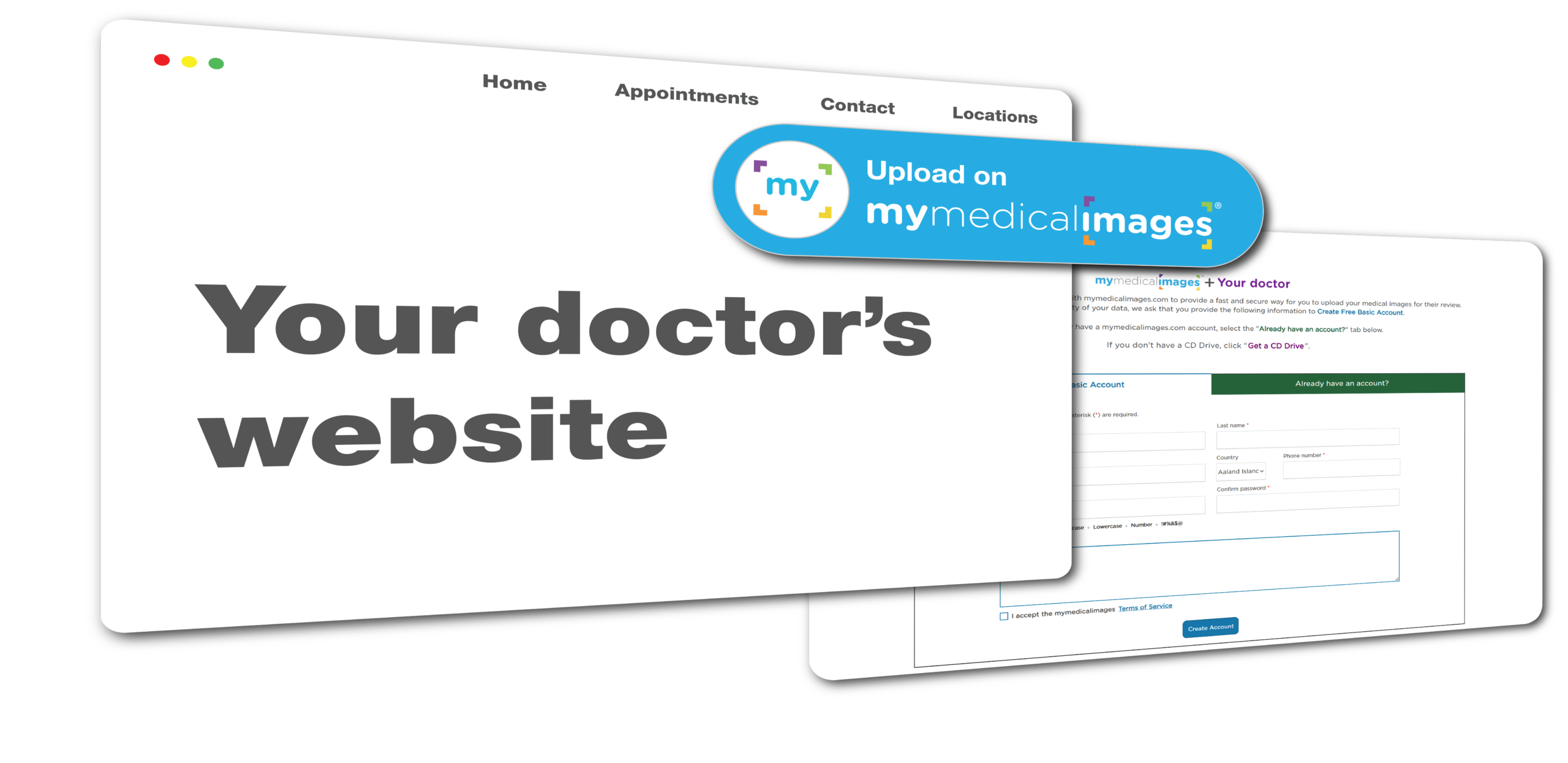
Were you asked to click the Uploader Button on your doctor’s website?
Look for and click on the “Upload on mymedicalimages” button or find “Upload Medical Images” in a menu dropdown on your physician’s website. Then create or sign in to your account, choose the source that matches your images, and click upload. Once the upload is complete, both you and your doctor will have a copy of your images.
You can then sign into your account and view your images.
*Note
The look, wording, and/or location of the button may vary depending on your provider.
Don’t have a CD drive?
Order a 
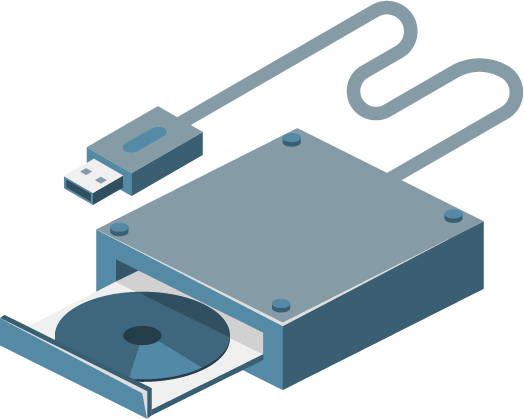
Click Learn More and order a CDdriveKit to easily upload your medical images from a CD. Get a bundled CD drive and mymedicalimages® subscription so you can securely upload, store, and share your medical images online.
Order a
Click Learn More and order a CDdriveKit to easily upload your medical images from a CD. Get a bundled CD drive and mymedicalimages® subscription so you can securely upload, store, and share your medical images online.