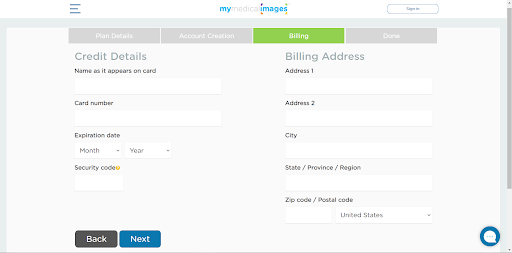
Account Creation
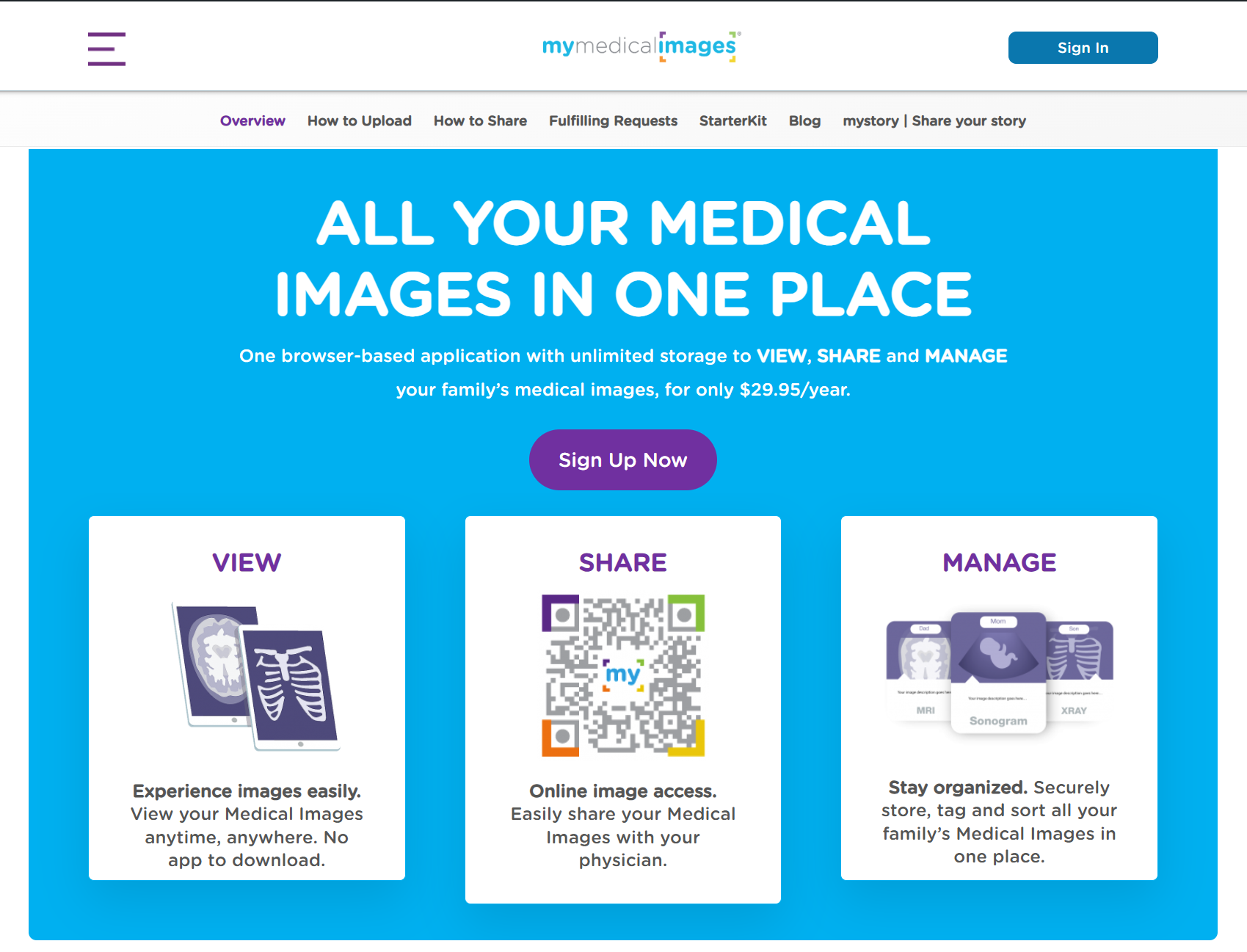
Step 1: Navigate to https://www.mymedicalimages.com/.
Step 2: Click “Patient” then on the Patient Page, click “Sign Up Now”
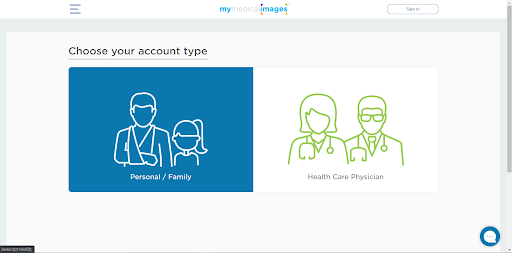
Step 3: Select the “Personal/Family” option for your account.
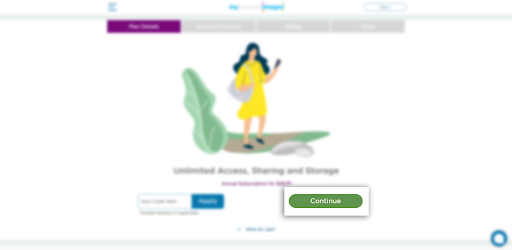
Step 4: If you have a referral or gift code, enter it into the text field in the bottom right and click the blue “Apply” button to apply it. (If you do not have a referral or gift code, skip to Step 5.)
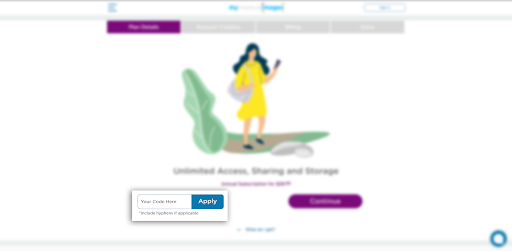
Step 5: Click on the green “Continue” button to proceed.
Step 6: Fill out your account information with your First Name, Last Name, Email Address, Phone Number, Password and Display Name.
For your Phone Number, select your country where you reside and include the area code for the number in question.
Your Password must be 8 characters long and include at least 1 Uppercase letter, 1 Lowercase letter, 1 Number, and 1 symbol (!#%&$@).
Then click the check box for “I accept the mymedicalimages Terms of Service” and click on the blue “Next” button.
Step 7: Fill out your credit card and Billing Address information, then click on the blue “Next” button.