Creating an Exam Room
Step 1: Log-in to your mymedicalimages account at https://app.mymedicalimages.com/.
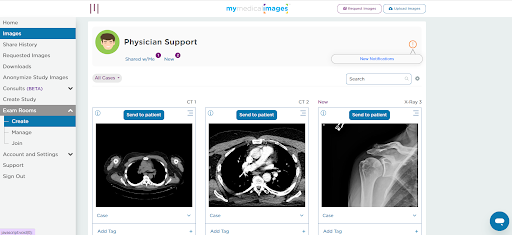
Step 2: Open the menu in the top left-hand corner of the page, click on the “Exam Room” dropdown menu and select the “Create” option.
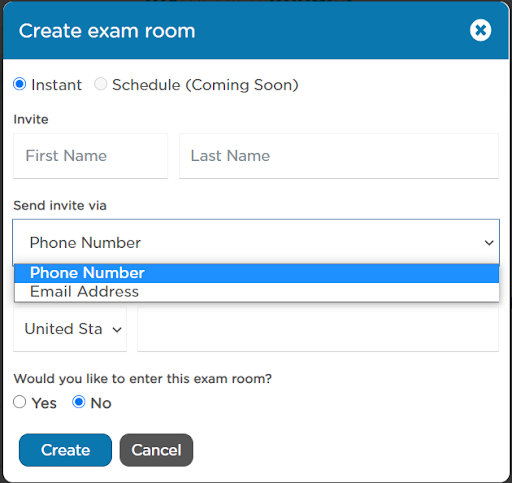
Step 3: Choose whether to send the invite via Email Address or Phone Number.
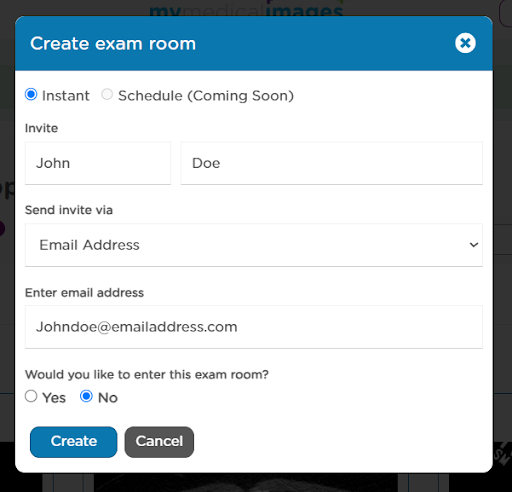
Step 4: Fill out the text fields with the information of the patient you are trying to create an exam room for.
You can also choose whether or not you would like to join the room as soon as it’s created, or join it manually later on by selecting either the yes or no option at the bottom of the pop-up.
Once you have filled everything out, click on the blue “Create” button at the bottom.
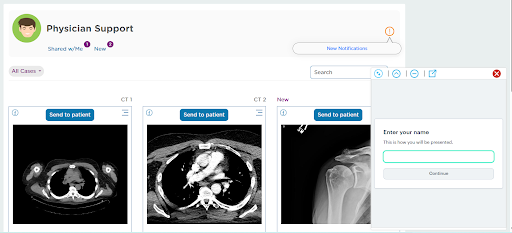
Step 5: The exam room has been created, and an invite has been sent out to the information provided previously. You will be taken back to the Dashboard, and the exam room window will pop-up in the bottom right of the page.