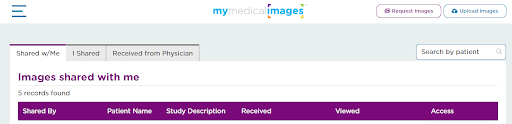
Accessing Images That Have Been Shared To You
Step 1: Log-in to your mymedicalimages account at https://app.mymedicalimages.com/.
Step 2: Open the menu in the top left-hand corner and click on the “Share History” option.
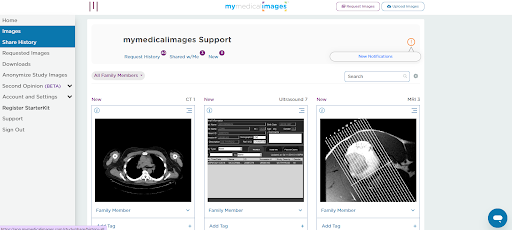
Step 3: Click on the “Shared w/Me” tab.
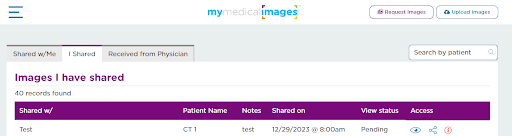
Step 4: From here, you can manage all of the images that have been shared to your account. Using the icons on the right-hand side of the image you would like to manage, you can (in order from left to right) view the images, share the images with someone else, look at the images information, or download the images to your computer.