View Attachments
Step 1: Log-in to your mymedicalimages account at https://app.mymedicalimages.com/.
Step 2: Open the image that the attachments are tied to in the Image Viewer.
Step 3: Click on the “Attachments” tool in the toolbar along the top of the viewer.
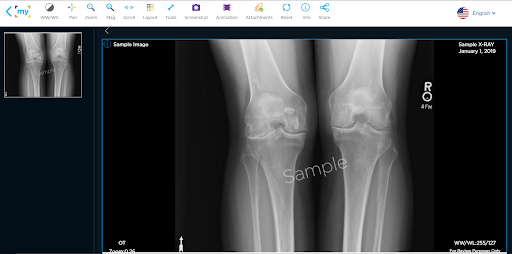
Step 4: Click on the name of the attachment you wish to open. It will have a separate line dedicated to it.
Depending on the type of attachment, it will be displayed in a different manner that will be detailed below.
Notes
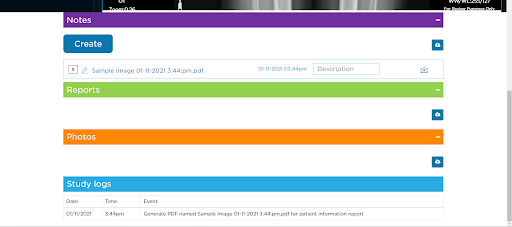
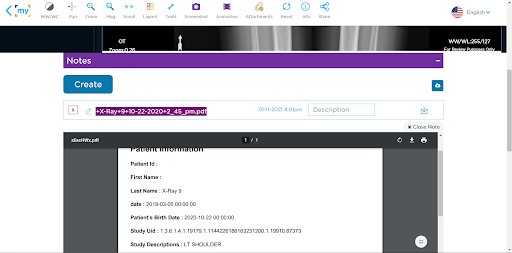
Notes related to the image set will be displayed in a view box within the notes section of the attachments page. This view box can be closed by clicking the “Close Note” button located in the top right-hand corner above the box.
Reports
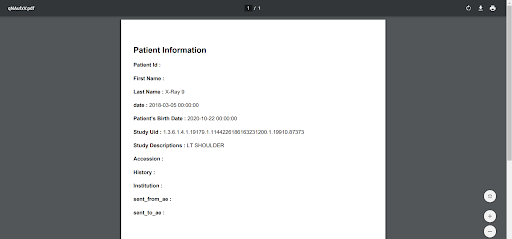
Any reports related to the image set will be opened in a separate browser tab. In order to continue looking at the attachments for a set, you will need to renavigate to the viewer tab.
Photos
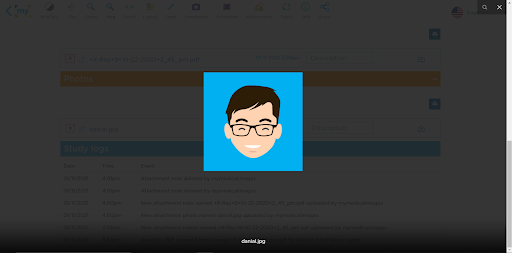
The photos related to an image set will open as an overlay over the page. You can close this overlay by clicking on the “X” icon in the top right-hand corner of the page.