

Subscribing To mymedicalimages
Step 1: Log-in to your mymedicalimages account at https://app.mymedicalimages.com/.
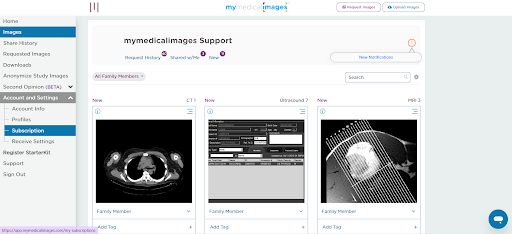
Step 2: Open the menu in the top left-hand corner of the screen, and in the “Account and Settings” sub folder, click on the option that reads “Subscription”.
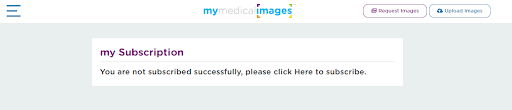
Step 3: On the “my Subscription” page, click on the blue “Here” button.
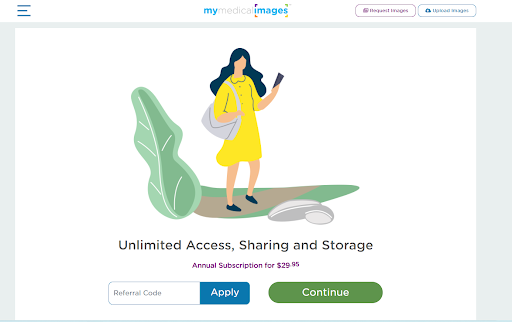
Step 4: If you have a referral code from your doctor, enter it into the text box on the left, then click the blue “Apply” button.
If you do not have a referral code, click on the green “Continue” button.
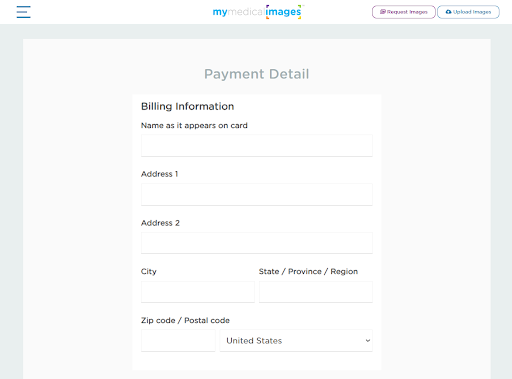
Step 5: Fill in your Credit Card Details and Billing Address in the text fields given.
When you are finished filling in your information, click on the blue “Next” button.
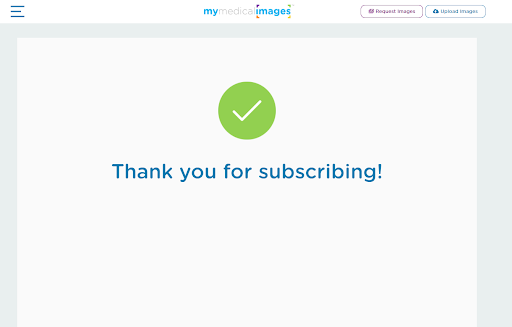
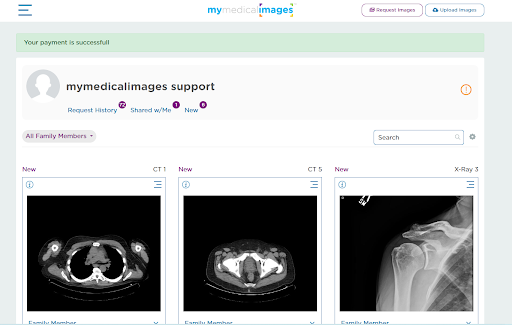
If your card was accepted, you will be given a quick thank you from our team for subscribing to our product before being put back onto the dashboard.
There will also be a short message at the top of the dashboard confirming that the payment was successful.
You now have access to all of the subscriber benefits that mymedicalimages has to offer, such as uploading images into your personal account or sharing the images you have through email.


