Creating a Study
Step 1: Log-in to your mymedicalimages account at https://app.mymedicalimages.com/.
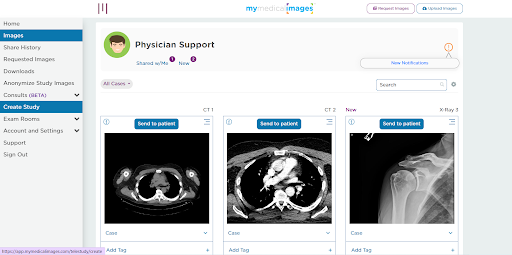
Step 2: Click on the Purple menu icon in the top left-hand corner of the page and select the “Create Study” option.
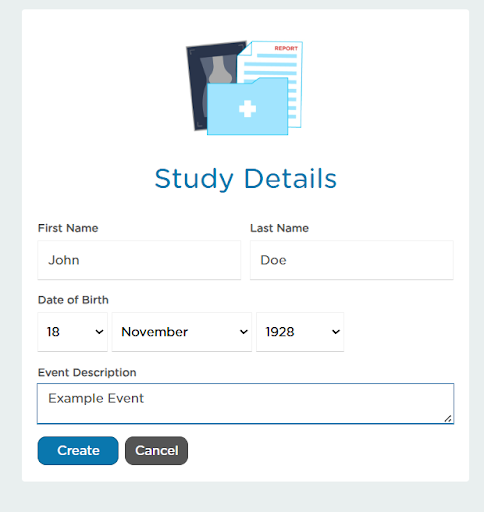
Step 3: Fill out the patient’s information in the text fields provided, including a brief description of the study, then click the blue “Create” button.
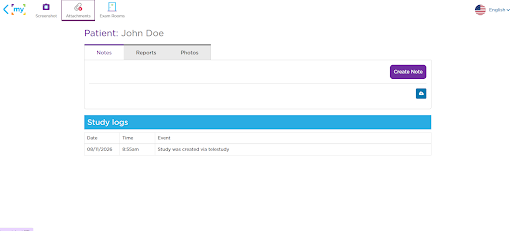
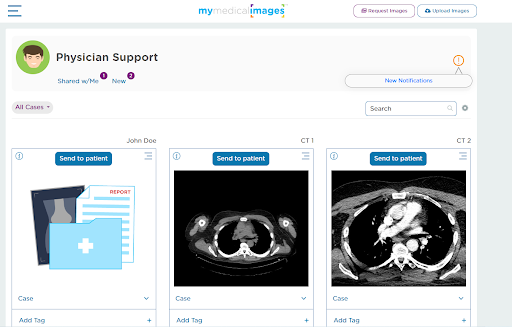
You have been redirected to the studies page. Here you can create, request, or upload Notes, Exam Forms or Photos related to the study. When you are finished, you can click on the “My” back button in the top left-hand corner of the page to return to your dashboard where your new study will appear for viewing or managing.