Requesting Consults
Step 1: Log-in to your mymedicalimages account at https://app.mymedicalimages.com/.
Step 2: Click on the purple menu icon located in the top left-hand corner of the page.
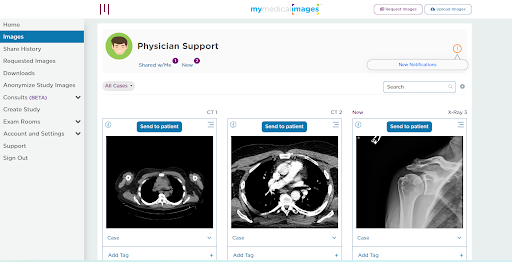
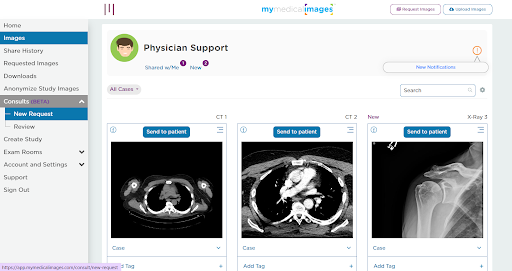
Step 3: Open the “Consults” dropdown menu and click on the “New Request” option.
Step 4: In the text fields provided, enter in the email address and name for the Physician you would like to contact for a consultation, as well as a note describing the images in question.
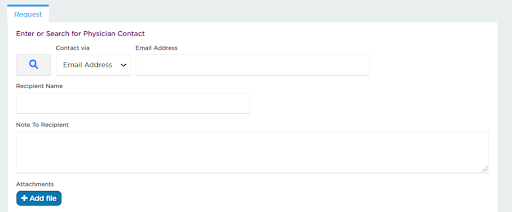
You can also search for Physicians by clicking on the “Magnifying Glass” icon.
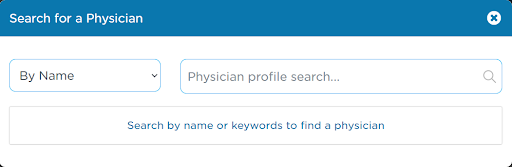
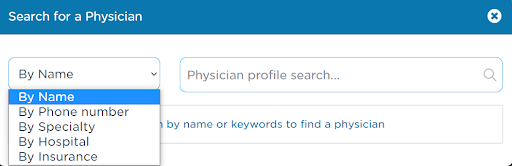
You can use the search tool to filter by phone number, specialty, hospital, or by insurance accepted.
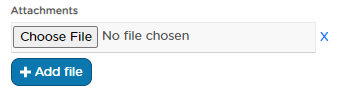
Step 5: To include any additional files in your Consult, such as Reports or relevant photos, click the blue “Add file” button. In the field that appears, click the “Choose File” button to open your computer’s file explorer. If you do not have any additional files, skip to Step 6.
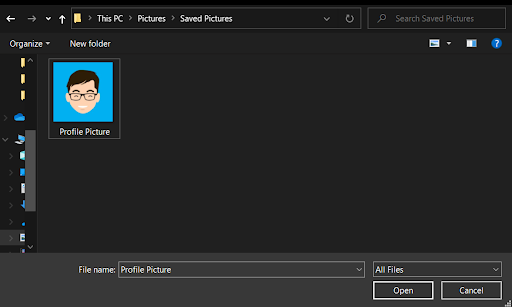
Select the files you would like to include in the consultation, then click the “Open” button in the bottom right-hand corner of the window.
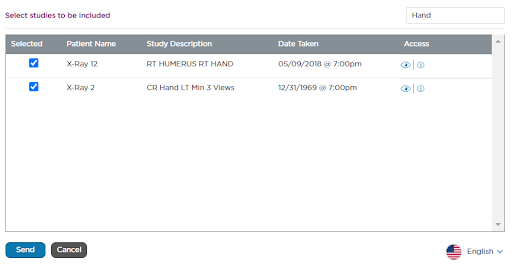
Step 6: Select the images you would like to send from the table at the bottom of the page by clicking the checkbox next to the image. You can select multiple images, and search for specific images by entering in the images information into the search bar in above the table. Once you have selected the images you would like to send, click on the blue “Send” button.
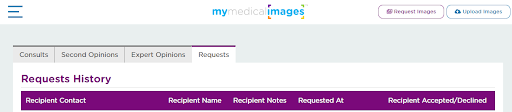
Once the Consult is sent, you will be navigated to the “Requests History” page for Consults. Here you can check the status of any Consults you have sent.