Send to Patient
Step 1: Log-in to your mymedicalimages account at https://app.mymedicalimages.com/.
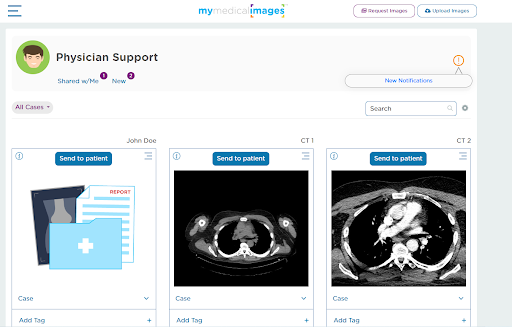
Step 2: Click on the blue “Send to Patient” button at the top of the study you would like to send.
Step 3: Fill out the information for the patient you are sending the images to in the text fields that are shown in the pop-up.
The fields for First Name and Last Name will be automatically filled based on the information given by the study.
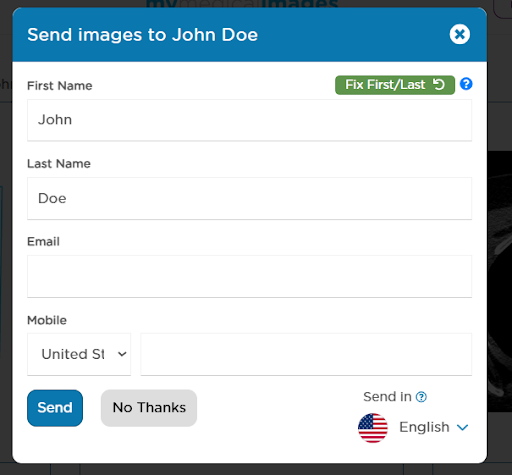
Step 4: Once all of the information is completed, click on the blue “Send” button in the bottom left-hand corner of the popup.
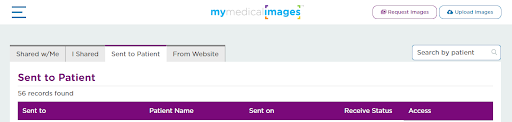
Step 5: After clicking the “Send” button, you will be redirected to the “Send to Patient” table of the “Share History” page. Here you will be able to see all of the shares you have sent, as well as whether or not they have been accepted by the patient.
From this menu, you can also click on any of the icons to (in order from left to right) View the study, share the study with another person, see the study information, or download the study to your computer.